Free Up Phone Storage Before a Trip Without Losing the Photos
Our buying advice is based on published specifications and documented features. The shop links below go to official stores and currently contain no affiliate tracking. Read our disclosure.
Gear to consider
Start with your use case. Check the store for the current price, compatibility, and availability.
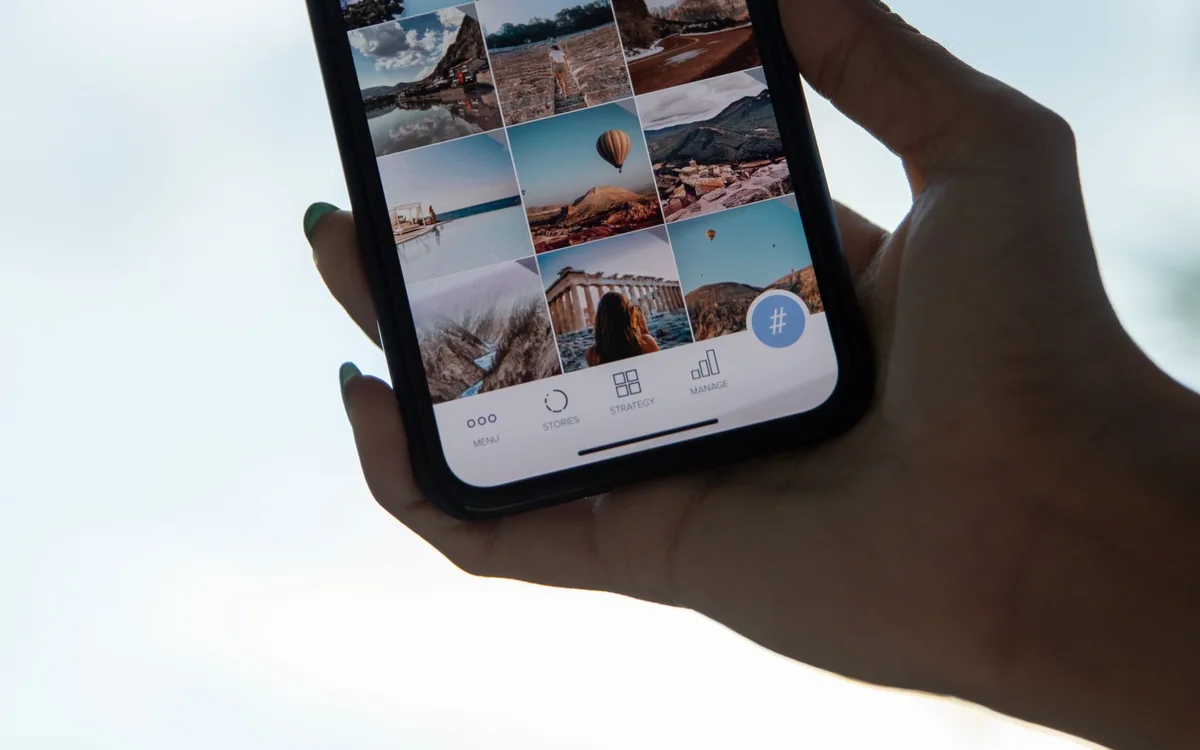
The boarding pass downloads successfully, then the camera warns that storage is full just as the trip begins. The temptation is to delete the biggest folder immediately. That is a poor moment to discover whether the photos were backed up, whether cloud deletions synchronize, or whether the hotel connection will be fast enough to restore a file.
A short cleanup at home is easier to control. This guide focuses on an iPhone workflow using Apple’s storage documentation, with general planning advice that also helps other phones. Menu labels can change with software versions, so use the current support page when your screen differs.
Read the storage breakdown before deleting
Open the phone’s storage settings and wait for the category breakdown to finish calculating. Note which applications and media collections occupy the most space. Apple’s iPhone Storage screen provides recommendations and individual application details. Take a screenshot of the starting point so you can see whether a cleanup made a meaningful difference.
Separate irreplaceable files from replaceable ones. Personal photos, locally recorded audio, and unsent creative work deserve a verified copy. Streaming downloads, old podcasts, and television episodes are usually easier to obtain again. Check inside large messaging apps carefully: attachments may include receipts, family pictures, or documents whose only copy is in the conversation.
Confirm the backup can actually be used
A backup indicator alone is not the same as opening the files you need. Check the relevant cloud account or computer and inspect a sample of recent photos and videos. If you export to external storage, open several files from that destination and confirm that both still images and videos play correctly before removing originals.
Understand the difference between synchronization and an independent copy. Deleting a synchronized photo library item may remove it from other signed-in devices too. Read the service’s deletion behavior before acting. If you are uncertain, make an additional independent export and postpone permanent deletion. Keeping a second copy is less disruptive than trying to recover a lost family photograph during a holiday.
Clear the files you can comfortably replace
Start inside the applications where downloads were created. Remove old offline episodes, completed audiobooks, and music playlists that are no longer useful. This gives you more control than deleting a whole application with unknown local data. Keep the playlists or lessons you genuinely want on the journey, particularly if mobile data will be limited.
Apple distinguishes offloading an app, which retains its documents and data, from deleting an app and its related data. Read the prompt before confirming either action. An offloaded app still needs downloading again before use, so do not offload your airline, authentication, or mapping application immediately before travel merely because it has not been opened recently.
Build an intentional offline pack
Download the maps, transport tickets, accommodation instructions, and essential documents you expect to need. Store sensitive documents using an appropriate protected method and avoid exposing them in a shared photo album. Keep a separate way to access key travel details if the phone is lost or unavailable. A local copy should solve a real access problem.
Then briefly test the important items without a connection in a safe setting. Can you open the ticket, read the address, and find the saved map? Some applications display previously viewed information without retaining the full offline file. Perform this rehearsal before leaving home, while you still have time to correct missing downloads and sign-in problems.
Buy storage only after fixing the workflow
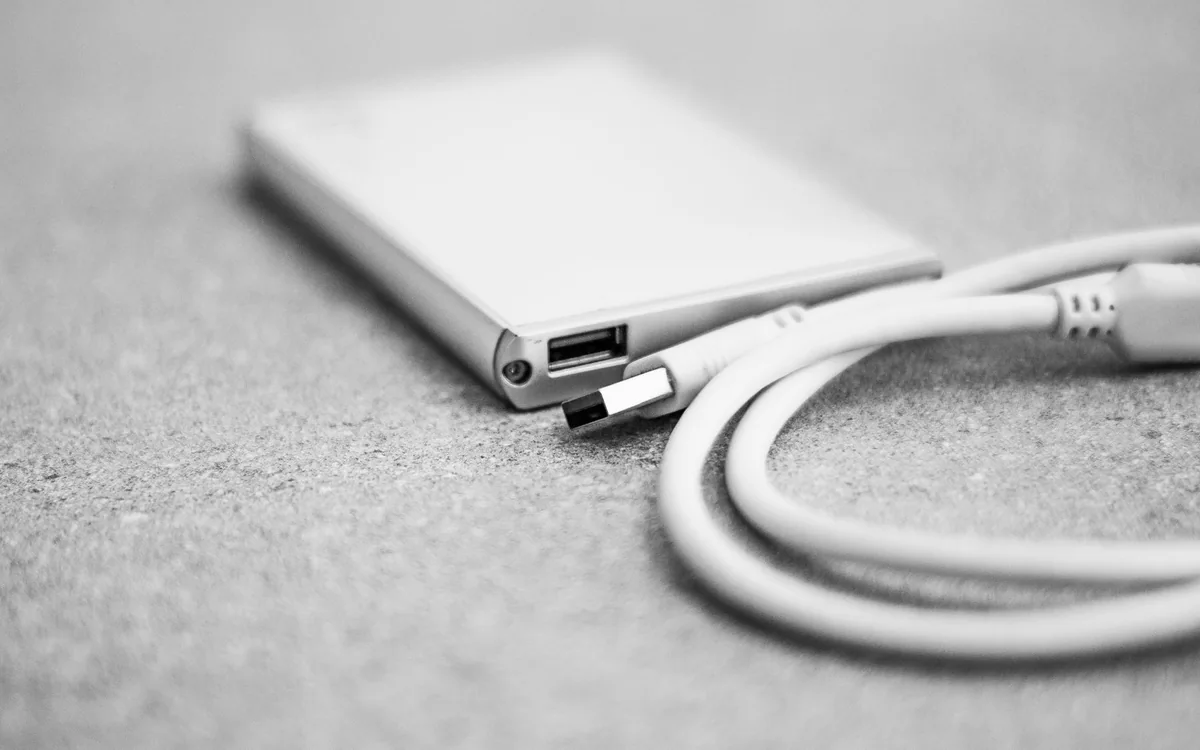
A portable SSD can help maintain a separate photo archive, but direct phone support depends on the exact model, connector, power needs, filesystem, and application. Do not buy a drive solely because both devices have USB-C sockets. A computer-mediated export may be simpler if you already own a laptop and do not need to edit files while travelling.
Apple’s 60W USB-C cable is useful for charging and ordinary transfers but is specified at USB 2 data rates. Large video exports may justify a properly supported faster cable and host. Start with the equipment you have, verify the copy, and keep enough free phone space for the trip’s expected recording rather than treating a new accessory as permission to delete unverified originals.
Common questions
How much empty space should I leave?
There is no universal amount. Estimate the photos and videos you intend to record, especially long or high-resolution video, then leave additional room for downloads and app use. Recheck available space after preparing offline files.
Can I delete photos as soon as cloud upload finishes?
First understand whether the service synchronizes deletion, and verify that the desired originals are accessible. An independent backup gives more protection than assuming a synchronized library behaves like a separate archive.
Sources & editorial notes
Manufacturer and support documentation checked for this guide. Features, regional availability, and prices can change. Our recommendations apply those documented features to everyday scenarios; they do not represent hands-on testing.
- Apple: checking iPhone and iPad storage · Checked 2026-10-19
- Apple: USB-C connections on iPhone · Checked 2026-10-19
- Apple: 60W cable data specification · Checked 2026-10-19
Found an error? Tell the editorial desk with the article link and a supporting source.