USB-C Cables: How to Tell Charging, Storage, and Display Jobs Apart
Our buying advice is based on published specifications and documented features. The shop links below go to official stores and currently contain no affiliate tracking. Read our disclosure.
Gear to consider
Start with your use case. Check the store for the current price, compatibility, and availability.
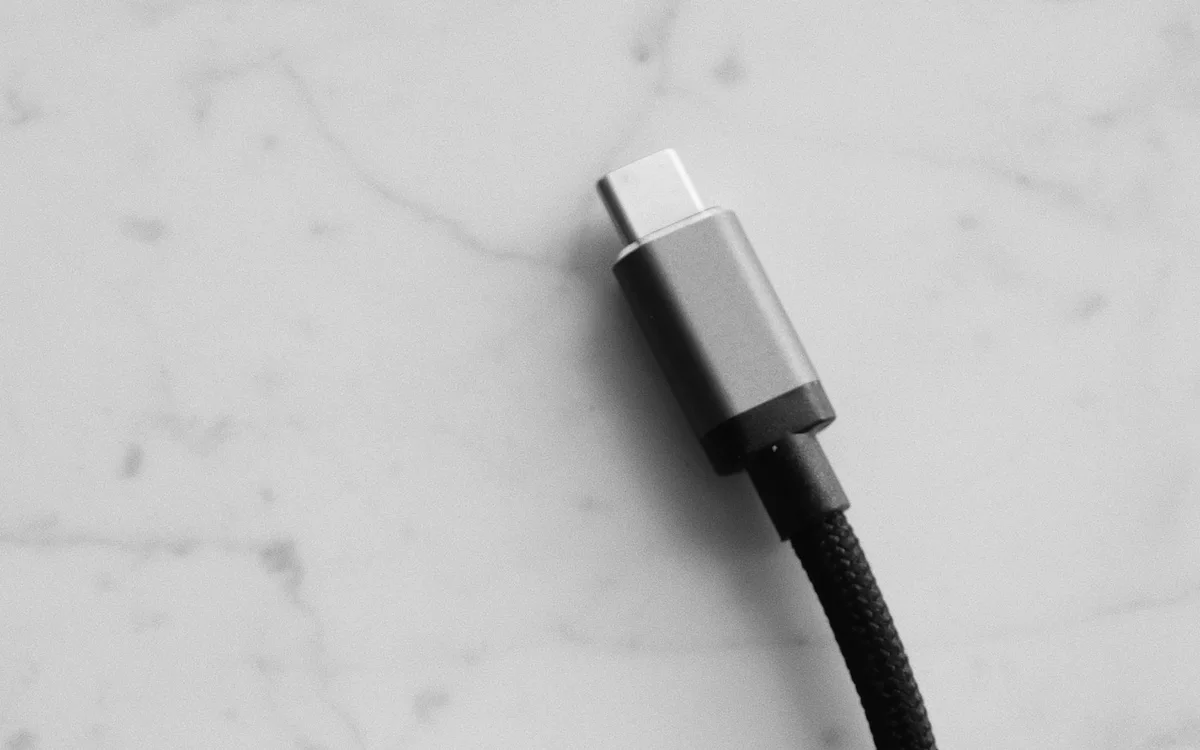
A cable charges your phone perfectly, so you use it to connect a portable drive. The transfer crawls. Later, the same cable produces no picture on a USB-C monitor. Nothing about the matching plugs warned you that these were three different jobs.
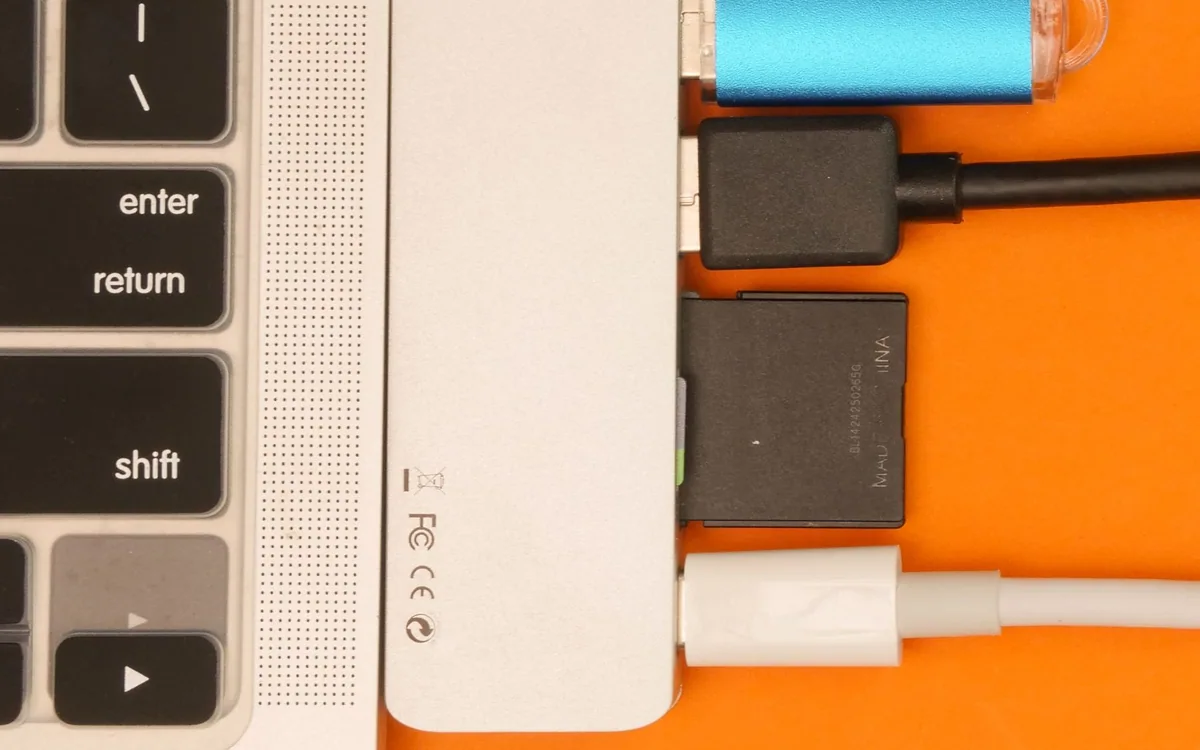
USB-C describes a connector shape, while power delivery, data transfer, and display support require additional capabilities. A useful cable collection can be small, but each cable needs an identifiable purpose. Start with what the devices support, then match the connection instead of shopping by appearance.
| Job | Check | Do not assume |
|---|---|---|
| Phone charging | Power rating and connector | High wattage means fast data |
| Portable storage | Host, drive, and cable data support | USB-C plugs guarantee equal speed |
| Display connection | Video support at every step | Any charge cable carries video |
Write down the job before choosing a cable
For charging, note the device’s connector and power requirement. For storage, check the host port and drive interface. For a display, check the computer’s video-output support and the monitor’s input requirements. A cable cannot add an unsupported feature to either endpoint, even if its own specifications are more capable.
This also prevents spending on unused capability. A high-speed cable may be worthwhile for large recurring video transfers but unnecessary for an earbud case that only needs power. If your phone has a slower data interface, replacing the cable alone will not turn it into a faster one. Keep the slowest relevant part of the chain in mind.
Read the charging and data lines separately
Apple’s one-meter 60W USB-C Charge Cable is an instructive example. Apple lists up to 60W charging and USB 2 data rates. Those are distinct specifications, and both can be correct at once. It is a reasonable charging candidate for compatible devices within its rating, without being the cable to choose for fast external-storage work.
When shopping, look for explicit published numbers or a clearly named supported standard rather than words such as premium, pro, or fast alone. Confirm that the listing applies to the precise length and model selected. A manufacturer may sell several similar-looking cables with different ratings under one product family. Save the specification with the receipt so it remains identifiable later.
Treat display connections as their own requirement
A USB-C display setup needs an appropriate video path from the computer or supported phone, through the cable, to the display. A charging cable does not automatically provide that path. Check the display manual for the required cable and supported resolution and refresh rate. Using the supplied display cable is often the most straightforward starting point.
Apple’s iPhone connection documentation distinguishes charging from high-resolution display use and faster transfers on supported models. Check your exact phone rather than assuming every generation offers the same capability. If the screen stays blank, confirm port support and cable specification before buying a new monitor or repeatedly changing software settings.
Choose a length that survives ordinary use
A very short cable is tidy beside a power bank but inconvenient when an outlet sits under a table. A long one gives reach yet creates more cable to manage in a small bag. Measure the actual route and leave enough slack for normal movement without stretching the connectors. Avoid tight bends immediately next to a plug.
Check whether the connector housing clears your phone case or the neighboring ports on a hub. Right-angle connectors can solve a specific clearance problem but can also point in the wrong direction. Braiding may change how a cable feels and coils; it is not by itself proof of a particular electrical specification or guaranteed service life.
Label a small kit and replace damage promptly
Use a small tag or colored tie to distinguish a routine charging cable from a display or fast-data cable. Label the role rather than relying on the connector’s color. Keep the documented cable with the device it serves when possible, especially if a monitor or storage drive is sensitive to connection capabilities.
Before buying, compare the current price, supported functions, manufacturer support, and return terms. Inspect existing cables for fraying, bent connectors, or intermittent behavior and stop using damaged ones. If a connection misbehaves, test with a known appropriate cable before replacing more expensive hardware. A purposeful two-cable kit can be more useful than a drawer full of indistinguishable bargains.
Common questions
Can one cable do everything?
Some cables support several demanding functions, but the devices must support those functions too. Check the documented capabilities and decide whether the added cost and thickness are worthwhile for the jobs you actually perform.
Does a new cable make an old phone transfer faster?
Only if the old cable was the limiting component and the phone supports a faster mode. Check the exact phone specification before buying; a higher cable rating cannot change the phone’s hardware interface.
Sources & editorial notes
Manufacturer and support documentation checked for this guide. Features, regional availability, and prices can change. Our recommendations apply those documented features to everyday scenarios; they do not represent hands-on testing.
- Apple: 60W cable specifications · Checked 2026-10-19
- Apple: USB-C charging, storage, and display connections · Checked 2026-10-19
Found an error? Tell the editorial desk with the article link and a supporting source.