Laptop Stand and External Keyboard: A Better Desk Starts with Position
Our buying advice is based on published specifications and documented features. The shop links below go to official stores and currently contain no affiliate tracking. Read our disclosure.
Gear to consider
Start with your use case. Check the store for the current price, compatibility, and availability.
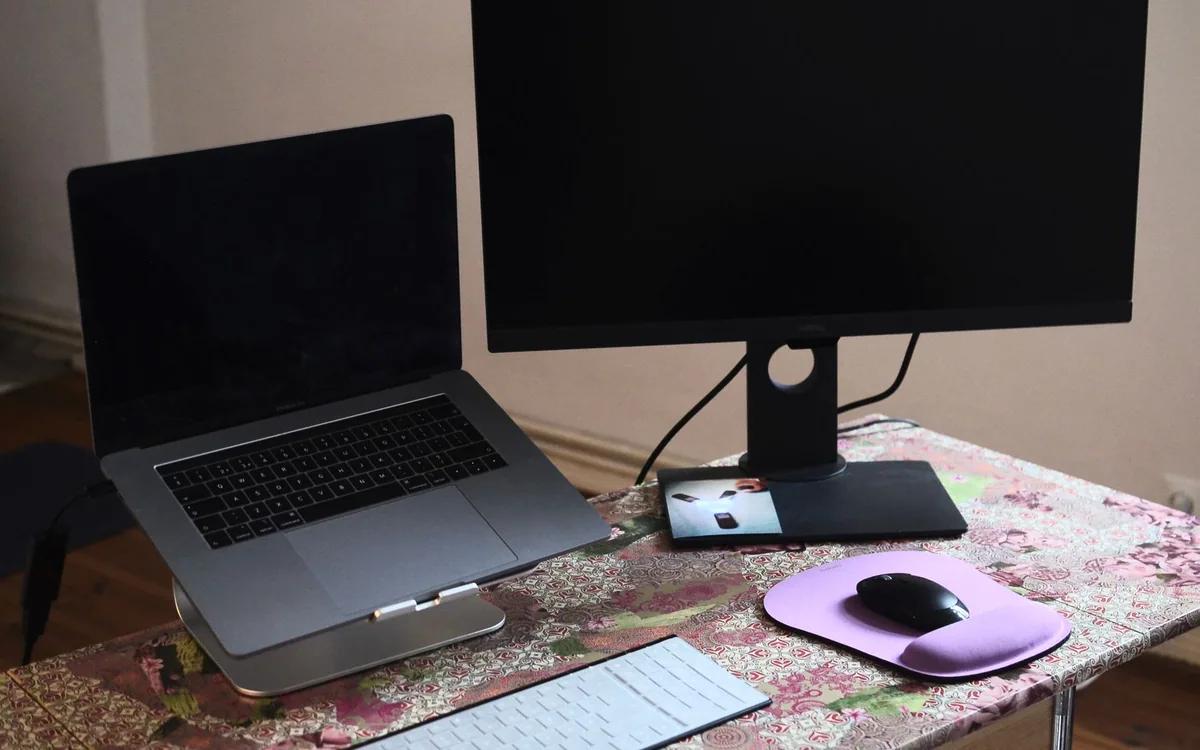
A laptop works well at a cafe for a short session, then becomes less convenient when it is the only screen for a whole day at home. Raising it can improve the viewing position, but the built-in keyboard rises too. A stand purchase therefore affects the whole desk, not just the screen.
The sensible setup separates screen placement from hand placement with an external keyboard and mouse or trackpad. This guide focuses on practical fit and published product details. It does not claim a particular arrangement will prevent or treat musculoskeletal problems.
| Workspace | Consider | Tradeoff |
|---|---|---|
| Permanent desk | Stable fixed stand | Limited height adjustment |
| Shared dining table | Folding adjustable stand | More setup each session |
| External monitor primary | Laptop as secondary screen | Reach and head movement |
Position the chair and input area first
Start with the chair and desk you have. Find a comfortable typing position with enough room for your forearms and easy access to the pointer. Clear unnecessary objects from the area. If the desk is too high or low for you, raising the laptop screen alone will not resolve every part of the arrangement.
Then consider where the display should sit for comfortable viewing. Avoid assuming that one fixed height fits every person or every screen. Your seated height, visual preferences, glasses, desk depth, and laptop size all affect the result. If you are uncertain about the general arrangement, experiment cautiously with a stable temporary position before choosing a stand design.
Choose stability and footprint over appearance
Check the stand’s supported laptop dimensions and weight, contact points, and base size. A graceful photograph does not show how it behaves when a cable pulls from one side or when a shared table moves. The stand should hold the device securely in the intended orientation without covering important vents or forcing the lid into an awkward angle.
Twelve South’s Curve is a raised laptop stand intended to be used as part of an external-input setup. Its open form is worth investigating for a permanent desk, but check the exact dimensions and laptop compatibility. A fixed stand offers a different compromise from an adjustable or folding model: less adjustment, but potentially a simpler everyday arrangement.
Pick the keyboard for the space below the screen
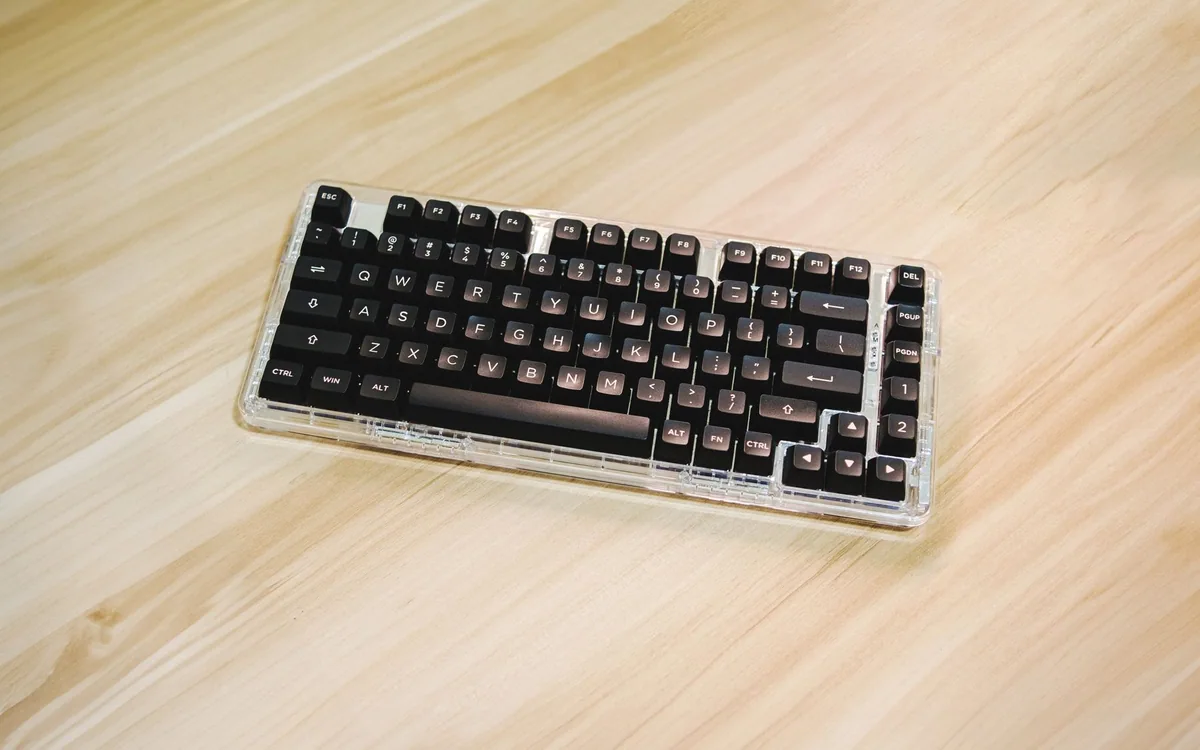
A separate keyboard lets you place the screen farther away without stretching for the keys. Choose a layout based on your work. A compact board can leave more room for the mouse, while a number pad can be valuable for frequent numerical entry. Measure the complete keyboard-and-pointer area rather than the keyboard alone.
Logitech’s MX Keys S is one low-profile option; Keychron’s K3 Max offers a compact mechanical alternative. These formats feel different, and neither is automatically better for every user. Consider sound in shared rooms, familiar key positions, and the software or pairing requirements. Check the selected regional layout before ordering so essential keys match your expectations.
Plan cables and the second screen together
Raising the laptop may make short cables too short or leave connectors hanging under tension. Route power and display cables with slack, especially if the desk changes height. Keep frequently used ports reachable, or use an appropriate hub if repeated access is awkward. Avoid adding a dock solely to hide cables before you know which connections you need.
If a monitor sits beside the laptop, choose which screen is primary and place it accordingly. A stand that aligns two screens neatly in a photograph may still require too much head movement for your work. Arrange the most-used window where you can see it comfortably and move less-used material to the secondary display. The desk should support the task rather than symmetry for its own sake.
Buy in stages and check a complete session
If you already own an external keyboard and mouse, try them before replacing them. The stand may be the only missing piece. If you are buying the whole kit, include the input devices, adapters, and any storage needs in the total cost. A folding stand may suit a dining-table workspace that must be cleared every evening better than a permanent sculptural one.
Use a normal session to assess typing, pointer reach, screen distance, video-call framing, and cable access. Adjust gradually and keep movement breaks in the day. Persistent discomfort deserves appropriate professional advice rather than an endless series of accessory purchases. The most useful setup is stable, comfortable for your routine, and easy enough to restore when the table has another job.
Common questions
Can I type on the laptop while it is raised?
Brief interaction may be possible depending on the stand, but sustained typing on a raised laptop can defeat the purpose of separating screen and hand positions. Plan a separate keyboard and pointer for longer desk sessions.
Do I need an expensive keyboard too?
No. An existing compatible keyboard may be enough. Choose around layout, sound, comfortable use, and reliable connection. A premium keyboard does not compensate for a poorly positioned desk or screen.
Sources & editorial notes
Manufacturer and support documentation checked for this guide. Features, regional availability, and prices can change. Our recommendations apply those documented features to everyday scenarios; they do not represent hands-on testing.
- Twelve South: Curve stand design and fit · Checked 2026-10-19
- Logitech: MX Keys S · Checked 2026-10-19
- Keychron: K3 Max · Checked 2026-10-19
Found an error? Tell the editorial desk with the article link and a supporting source.